How I built my own minimal Linux using Debian
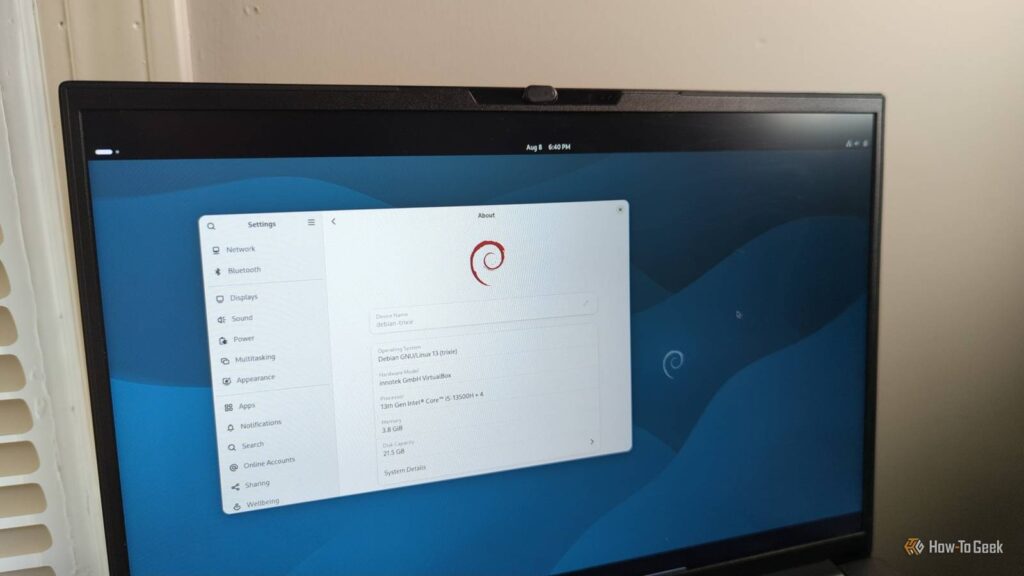
When I was writing an article on tiny Linux distros, I needed one to try out. Instead of having to hunt for one, the best solution I thought would be one that I already had.
Why make my own tiny Linux?
While there are a lot of tiny Linux distros that I’ve enjoyed playing around with, Debian and Ubuntu are my primary distros. A lot of these distros use different package managers and installers than the ones I would prefer.
Debian-style distros have been familiar to me since before I started using Linux seriously. The first distro I’d ever tried was Knoppix, one of the first live distros. I’d become familiar with APT through the Fink package manager, which I’d encountered when using the Terminal on macOS (this was long enough ago that it was still called Mac OS X).
For a recent piece on tiny Linux distros I was working on, I thought that I’d rather not reinvent the wheel. I’ll just create my own tiny Linux out of an existing system. That would be Debian.
Installing Debian

I didn’t have to look far. In setting up a virtual machine, I could just use one of the “netinst” or “net installation” images I had lying around in my downloads folder. While it wasn’t exactly the latest version, that wouldn’t matter as much to me.
With a Debian netinst image, the latest packages are automatically pulled down from a mirror that you select in the installation program. This was already a minimal version, meant for people with reliable internet connections. This means that the initial download can be very light, or at least as light in the SSD-and-broadband world I live in.
All I had to do was set up the VirtualBox machine for it. Since Debian is already so popular, VirtualBox has a predetermined configuration available.
The Debian installation program is also something I’m already familiar with. I chose the traditional text installation at the installation images’s boot screen and the blue, gray, and red color scheme greeted me like an old friend.
Tweaking the default installation
One reason that I chose Debian to create my own tiny Linux is that I knew that I could get a custom installation with just the basics, without having to deal with the headaches of Arch (which I have run, by the way, to get that meme out of the way).
After setting up the users, time zone, drive partitions, and other things, I could finally get to the software selection screen. By default, it’s set up to install a Debian desktop system with a GNOME environment. I was unable to uncheck the boxes and to install a minimal environment. This would be so minimal that it wouldn’t include any GUI. This would be a completely console-based system.

With this configuration selected, I was able to download the required packages. Soon enough, I was prompted to install GRUB and reboot into my new system.
My new system worked, though I wasn’t surprised by that. I’d already used a modified approach to create virtual server installations. I logged into my system and was greeted with a serviceable environment.
Installing other utilities

There were still some utilities I would want to install. While the console is good enough for some basic use, a more convenient way to multitask would be helpful. Back in the days of physical terminals and consoles, the ways to multitask at a Unix shell would have been through job control or a terminal multiplexer.
Job control is useful though a bit cumbersome. a terminal multiplexer would be more useful. tmux is my go-to for the latter, so I installed that. With tmux installed, I could new split the screen into multiple windows and switch between them, right from the console. I wouldn’t have to install any GUI on this system just to have multiple terminal windows.
sudo apt install tmuxA good use for a system like this would be for recovery, so I would want to install system recovery tools such as those for disk repair. fdisk is already included on this system, but GNU Parted would also be useful, because it allows for nondestructive repartitioning.
The console version is easy enough to install:
sudo apt install partedI could customize this system even further to make it more like what I’m used to. I could install my favorite shell, zsh, and Vim, my favorite editor, right in one command as well.
Debian really is “the universal operating system”
This exercise demonstrates what Debian’s slogan as “the universal operating system” means. While there are lots of Debian versions, I could set up this system straight from a standard installation image.
As with Burger King’s famous slogan, I can “have it my way.” I could have built this system on another variant of Linux, such as the testing or unstable versions. I could have installed this system for an architecture beside x86, such as ARM on a Raspberry Pi. It’s this flexibility that’s made Debian a basis for other distros, including Ubuntu.
Debian’s flexibility made it the distro of choice for this project, and I think it will continue to serve me well in the future.
link