


I don’t know about you, but I think there’s something special about loading an operating system onto a brand new SBC. To me, it feels like smashing a bottle against a ship before it’s launched, an official “breaking in” of new hardware. And for a while now, people have relied on Raspberry Pi’s official Imager to get an operating system on their SBC.
While I’ve personally had no issues with the Imager, it seems the good folk over at the Raspberry Pi Foundation think differently. They have just released version 2.0 of the Raspberry Pi Imager, and things are looking even easier to use for getting your SBCs ready to roll right out of the box.

The new Raspberry Pi Imager v2.0 is here, and it makes things even easier

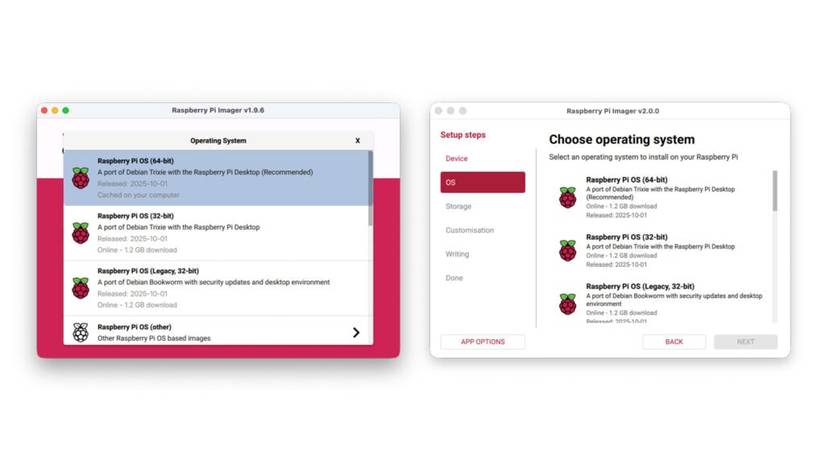
The Raspberry Pi Foundation states that the biggest change with the new imager is the wizard. This helps guide you through the process of getting your SBC up and running, and the steps are as follows:
- Select your Raspberry Pi device
- Choose your operating system
- Pick your storage device
- Configure your system (hostname, location, user account, wireless LAN, remote access, Raspberry Pi Connect, and interface options)
- Write your image
- Done!
You may have noticed something different about these steps compared to the original imager. People who have installed an OS on their SBCs far too many times (I see you, tinkerers) may have noticed that the wizard now lets you set up Raspberry Pi Connect during the setup phase. No more setting up remote access; just use your Raspberry Pi Connect credentials during setup, and your Pi will be ready to go on first boot.
However, not every tweak was a technical one. The Raspberry Pi Foundation understood that this wizard may be the end-user’s first ever impression of the SBC. As such, they’ve made the wizard play nice with screen readers, made it entirely navigable with just a keyboard, and even introduced a new color scheme based around Raspberry Red.
If you’d like to read more about this handy new app, pop over to the Raspberry Pi blog post for all the details. Or, if you want to do less reading and more installing, you can grab the new imager right away. Just head over to the Raspberry Pi Imager download page and grab the newest version.
link