


Like many avid Windows OS users, I was also a big fan of Windows XP. There’s no exaggeration in saying that it’s one of the major reasons Microsoft is a household name among PC users.
Feeling nostalgic for simpler computing days, I found myself recalling the iconic Windows XP: the startup chime, the classic wallpaper, some amazing features that I still miss, and the straightforward user interface. So, out of curiosity, I decided to test how this beloved operating system would perform on my modern laptop, which features an Intel i5 11th Gen processor and 8GB of RAM. As you might expect, things didn’t exactly go as planned.
After encountering several compatibility issues, I ultimately settled on a virtual machine approach. Here’s my journey into the past, detailing the hurdles, surprises, and insights along the way.
Native install? Not a chance
Modern hardware and Windows XP don’t get along anymore

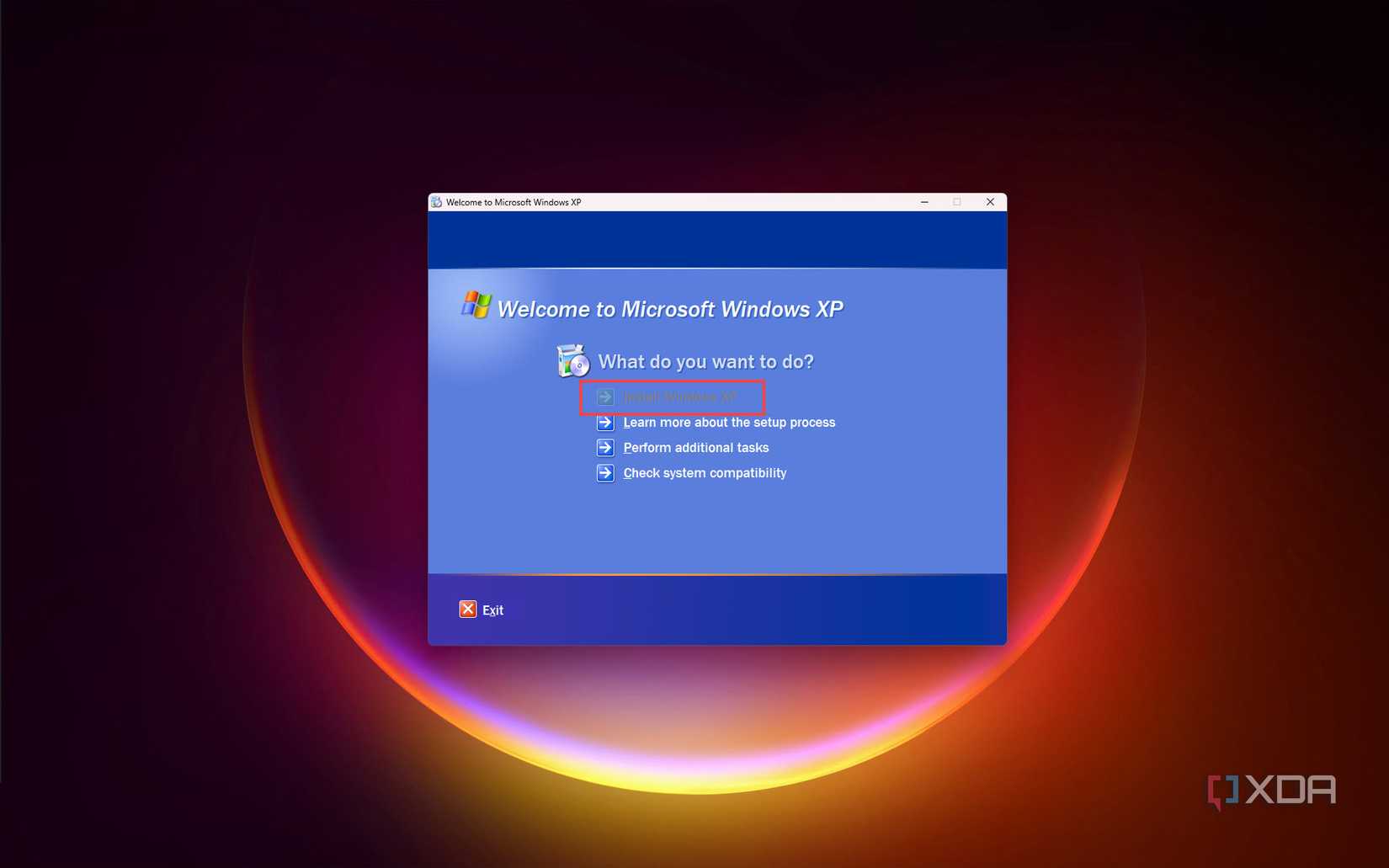
My initial goal was to install Windows XP directly on my laptop, dual-booting it with Windows 11. However, that didn’t happen, and it didn’t take me long to understand why modern PCs no longer play nicely with legacy operating systems. The first and the major one is the UEFI and Secure Boot conflicts. Since Windows XP was developed before the era of UEFI firmware and Secure Boot, installing it on modern systems, especially laptops, leads to compatibility issues. Even after disabling the secure boot, the issue persists.
The next issue was the lack of USB 3.0 support. XP doesn’t support USB 3.0, and unfortunately, my laptop only has 3.0 ports. So, when attempting to install XP via a bootable USB, I was unable to run the installer. I was completely unaware of this issue until I read about it on Reddit and other forums. Furthermore, my laptop’s modern SATA SSD went completely undetected by XP’s installation media, and even installing on an external hard disk isn’t supported. XP also doesn’t support NVMe SSDs. Modern chipset and graphics card drivers were nonexistent for XP, creating even more significant compatibility headaches.
After extensive troubleshooting, I finally came to the conclusion that installing XP natively would require substantial BIOS alterations, custom driver integrations, and potentially compromise the stability of my hardware. Given these complexities and risks, I opted for the most secure and logical solution — setting up a virtual machine.
My setup: running XP on a virtual machine
Oracle VirtualBox gave Windows XP a second chance
To bypass the modern hardware challenges, I turned to Oracle VM VirtualBox, a free and robust virtualization tool. I already had a Windows XP SP2 ISO from years ago, along with a valid product key. If you don’t have one, you can easily find and download an XP ISO from the internet.
From here, it was pretty straightforward and self-explanatory. I allocated 1GB of RAM and a 30GB virtual hard disk to the virtual machine. Further, I also disabled the “Unattended install” option, which initially caused issues with the installer. Surprisingly, the installation process was smooth sailing after these simple adjustments were made. Witnessing the iconic blue XP installation screen was instantly nostalgic.
First boot: that familiar bliss
The nostalgia was instant, but reality hit soon after


When XP booted for the first time, a wave of nostalgia hit me. Seeing the legendary Bliss wallpaper, hearing the iconic startup sound, and interacting with the familiar UI brought back fond memories of simpler tech days. To my surprise, the virtual environment responded exceptionally well, feeling pretty snappy and lightweight. The product key I used activated without any issues, making the entire process effortless.
However, reality quickly set in. Compared to today’s sleek, modern operating systems, Windows XP immediately showed its age. The oversized icons, clunky fonts, and dated aesthetics made it clear how much UI design has evolved over the last two decades.
What worked (and what didn’t)
XP runs, but it’s definitely showing its age
Within the VirtualBox environment, XP was functional but had some clear limitations. Basic apps, such as File Explorer, Notepad, Paint, 3D Pinball, and Task Manager, functioned flawlessly without any lag. I also relived the Windows Media Player days. With a bit of manual tweaking, file transfers via USB were achievable but were pretty slow. Internet Explorer 6 was practically unusable. Only Google.com worked for me. I used the MyPal browser, which provided a slightly better experience; however, HTTPS websites often failed to load properly, severely restricting my browsing capabilities.
Modern peripherals, such as webcams and Bluetooth devices, as well as most contemporary hardware, lacked compatible XP drivers, rendering them unusable within this setup. It didn’t even support a multi-monitor setup. Most applications and games released after 2010 simply refused to install or run, making XP unsuitable for modern tasks. I downloaded an older version of VLC, but even that failed to install.
XP in 2025: a snapshot of simpler times
Why it was oddly refreshing to use a stripped-down OS


Despite its drawbacks, revisiting Windows XP offered a refreshing simplicity. I used it for almost a week for lighter tasks. The lack of intrusive notifications, bloatware, frequent updates, or forced restarts felt liberating. XP, as expected, booted incredibly fast and operated efficiently due to its minimalist design.
Using XP again reminded me of the time before cloud integrations, app stores, biometrics, and the constant demands to remain connected to the internet that modern operating systems impose. It was also a pleasant reminder of how far we have progressed in the computing field in terms of convenience and a bit of complexity.
The security elephant in the room
Using XP in 2025 is risky, even on a VM


However nostalgic you may be, running Windows XP in 2025 poses serious security concerns. XP last received security updates in 2014, leaving numerous vulnerabilities unpatched and actively exploited. Modern antivirus software no longer supports XP, leaving your system vulnerable to malware. Even browsing the internet on XP is unsafe, as there are no secure browser options available.
Even though you are in a virtual environment, misconfigured file sharing can expose your host system to risks. Running XP within a VM provides some protection through isolation, but it’s still critical to keep the VM offline or consistently use snapshots to roll back to secure states.
Why I’d still recommend trying it (cautiously)
It was fun revisiting XP

Despite obvious security and compatibility issues, revisiting XP has its merits. I would recommend revisiting XP just for a few reasons. Classic games such as Age of Empires II, Doom 3, Mortal Kombat 4, Need for Speed: Most Wanted, and more run perfectly on XP, offering pure nostalgic enjoyment. It is also ideal for opening old Microsoft Office documents or running legacy applications in a safe, contained environment.
If you are a software developer, XP is perfect for testing the backward compatibility or functionality of older software in isolation. It also offers valuable insights into the evolution of operating systems, highlighting advancements in design, security, and functionality.
Revisiting Windows XP: a fun ride with clear limits
Glad I tried it, but it’s not suitable for modern machines

Exploring Windows XP on modern hardware was a thoroughly enjoyable nostalgia trip, yet it underscored the rapid evolution of technology. XP, charming in its simplicity and speed, clearly isn’t suitable for modern-day use beyond an isolated VM environment.
Nevertheless, if you’re curious and nostalgic, experimenting with XP on a virtual machine is worth the effort. Unfortunately, I wasn’t able to run it directly on my modern laptop, but it will probably work on an older desktop. If you have one, please try it and share your insights.
link