


Recently, I revisited Seelen UI, a desktop environment of sorts for Windows PCs, powered by web technologies. I had originally tested it out almost a year ago, but the platform has evolved significantly since that earlier iteration, and Seelen UI today is a much more interesting piece of software than it was a year ago.
Desktop environments aren’t really a thing on Windows 11 in the same way they are on Linux, which is a big shame considering they can offer such an interesting range of experiences. But Seelen UI is probably the closest you can get to a completely new OS feel on Windows, and it achieves this through a combination of factors that end up creating a whole new experience, even if most of what you know of Windows is still there.
The whole desktop UI changes
It’s closer to macOS or Ubuntu
Right off the bat, Seelen UI makes a noticeable difference because it replaces the Windows taskbar entirely. It’s technically only set to auto-hide, but it never seems to come up by accident, which adds to the immersion of this alternative experience.
Instead of the taskbar, we get a dock that more so resembles macOS. It still has your app icons and a button for the Start menu (unfortunately, that’s one part that hasn’t been replaced yet), but it also includes a “Now playing” widget where you can control media playback easily. It’s familiar and unique in its own right.
But that’s just half of it, because Seelen UI also introduces a menu bar along the top, and this is where it gets even more unique. This bar includes the expected things, like a clock and icons for things like internet, Bluetooth, and more. What’s incredible about this is that you might think these just open the Windows flyouts for each thing, but no — all of these buttons have a corresponding flyout that matches the UI style of Seelen, which looks great. Even notifications come in with a modified style, it’s really cool.
On top of that, there’s a custom menu in the top left corner where you can quickly jump into your files. This is also totally custom-made, and having quick access to recent files and user libraries through here is a unique feature Windows doesn’t normally have. It really feels like a completely different experience.
It’s very customizable
Windows could never
On top of offering a very custom UI out of the box, Seelen also benefits from a relatively small, but powerful ecosystem of “resources” that can be used to modify the look and feel of the UI. You can add animations that make the dock feel more like macOS, for example, or change the color of the Start button.
These resources can do all kinds of things, though, like adding weather to the menu bar, or a media widget. And then some resources just focus on changing the look of the experience, tweaking the UI elements of the menu bar to have a completely different vibe.
One of the more interesting resources is aptly called “Fully customizable dock”, which lets you change the color and transparency of every single element in the dock. It’s a level of customization you’ll never get from Windows, and when Seelen UI itself already looks so different, it makes for a truly fresh experience.
A tiling window manager
Multitasking made easier
Tiling window managers are a feature that’s often praised by Linux users, but they exist on Windows, too. Seelen UI is one of the options out there that offers such a feature. If you’re wondering what that means, it’s all about ensuring you never have overlapping windows, and all your open apps are always in view and organized in an efficient way.
Essentially, when you enable the tiling window manager in Seelen, any app you open is tiled right next to the ones you already have on screen, and the layout changes automatically as you open more apps. If you have a large screen, it makes it very easy to have all your apps side by side automatically, and you can easily reorder or resize these tiles to fit your needs. Closing an app also adjusts the layout to fit only your open apps, so it’s always optimized to make use of the available screen real estate.
The tiling window manager is also fully controllable with the keyboard, so you can organize and move things around more easily without having to use a mouse. It all adds up to make for an experience that can really bost your productivity.
Workspaces
Isn’t that a Linux thing?

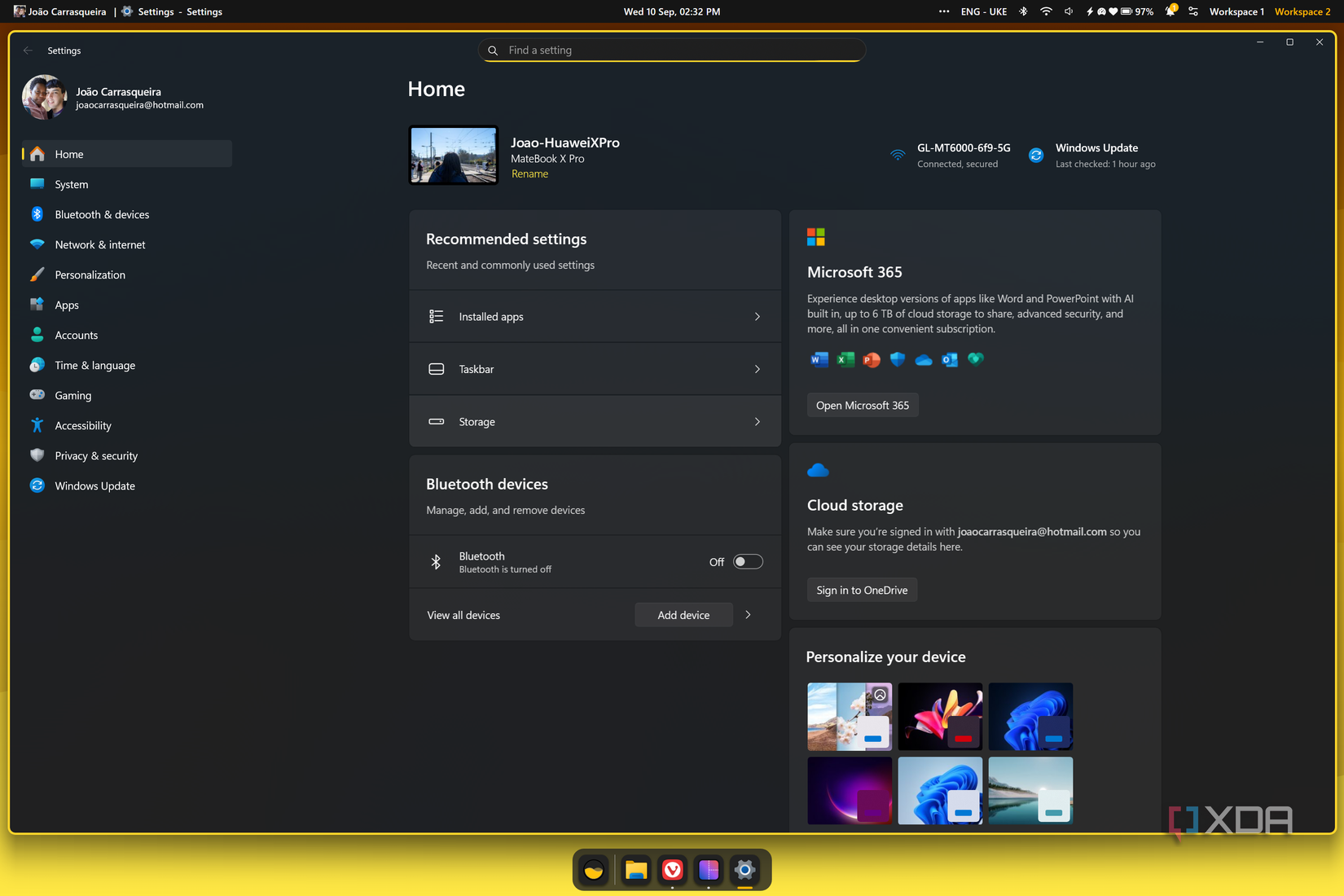
Workspaces are a feature that kind of go hand-in-hand with the tiling window manager, though they’re totally independent. It’s worth mentioning that Windows 11 does have an equivalent in the form of virtual desktops, but Seelen UI makes things a bit easier because your workspaces are always shown in the top menu bar, similar to how it works in Ubuntu (provided you enable the corresponding module).
It’s easy to switch between workspaces using the mouse, but you can also use the keyboard to jump between them. And while you’re using the keyboard to manage your tiled windows, you can also easily move a window to a different workspace, benefiting from the same tiled window layout to organize your windows and keep everything in view. This way, you can easily jump between different views where all your apps are visible, so staying on top of multiple projects becomes that much easier.
It’s not perfect, but it’s a glimpse at a different world
Seelen UI is far from a perfect piece of software, and it does take a bit of a toll performance-wise. However, it’s just cool to see this concept of desktop environments realized in such a thorough way on Windows. Different desktop environments are one of the best features of Linux, and it’s great to see that even without any kind of support from Microsoft (in fact, the company has made the Windows shell more locked down over time), developers can still come through and make this kind of experience possible.
link